

Apple-Style Scroll Animation: The Complete 4-Step Guide (With Every Prompt)

Usama Usama
Innovorus Team
The Apple-style scroll effect explained in 4 simple steps with every AI prompt included. Learn how to map frame sequences to an HTML canvas using Google Flow, EZGIF, and modern AI coding tools.
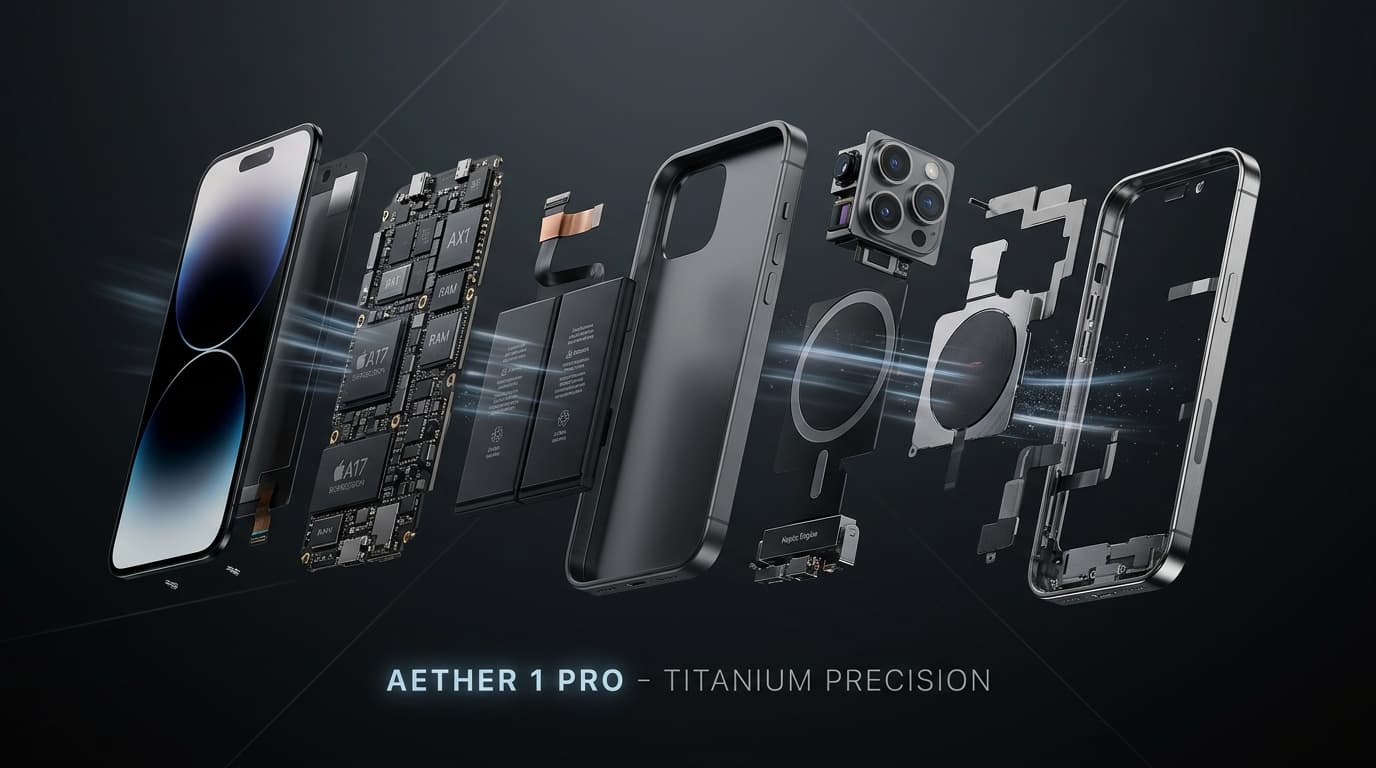
Apple-style product exploded scroll-animation pipeline using Google Flow and HTML canvas.
The Apple-style scroll effect, in 4 steps, with every prompt.
What this actually is: A stack of still images painted onto an HTML canvas, where the scroll position decides which frame shows. Scroll down, it steps forward. Scroll up, it steps back. Your scroll is the play head. That is the whole secret behind Apple's product pages — no proprietary magic, just frames mapped to scroll.
⚠️ Whisk is Dead
Google Whisk shut down permanently on 30 April 2026. Its features were folded into Flow. Any tutorial telling you to start at labs.google/whisk is out of date — that URL now redirects or errors. Everything happens in Flow now, at flow.google. That makes this a 4-step workflow, not 5.
Google Flow (flow.google), EZGIF (ezgif.com), & your AI coding tool
~20 minutes once you know the steps
100% Free (Flow free tier & EZGIF)
Step 1: Generate Two Frames (Google Flow)
You need a start image and an end image. The AI fills in everything between them. Go to flow.google and generate both.
Frame 1 — The Start State
A [PRODUCT] shot on a plain [COLOUR] studio background,
fully assembled and intact, centred in frame, shot from a
[three-quarter / straight-on] angle.
Soft even studio lighting, no harsh shadows.
Photorealistic, high detail, sharp focus throughout.
Plenty of empty space around the product.
No text, no logos, no people, no props.
Frame 2 — The End State
The exact same [PRODUCT], same background, same lighting,
same camera angle and same distance as the previous image.
Now [DISASSEMBLED INTO ITS SEPARATE COMPONENTS, FLOATING
APART IN AN EXPLODED VIEW / ROTATED 180 DEGREES / OPENED].
Each part clearly separated with space between them,
arranged symmetrically around the centre.
Identical lighting and background to the first image.
No text, no logos, no people, no props.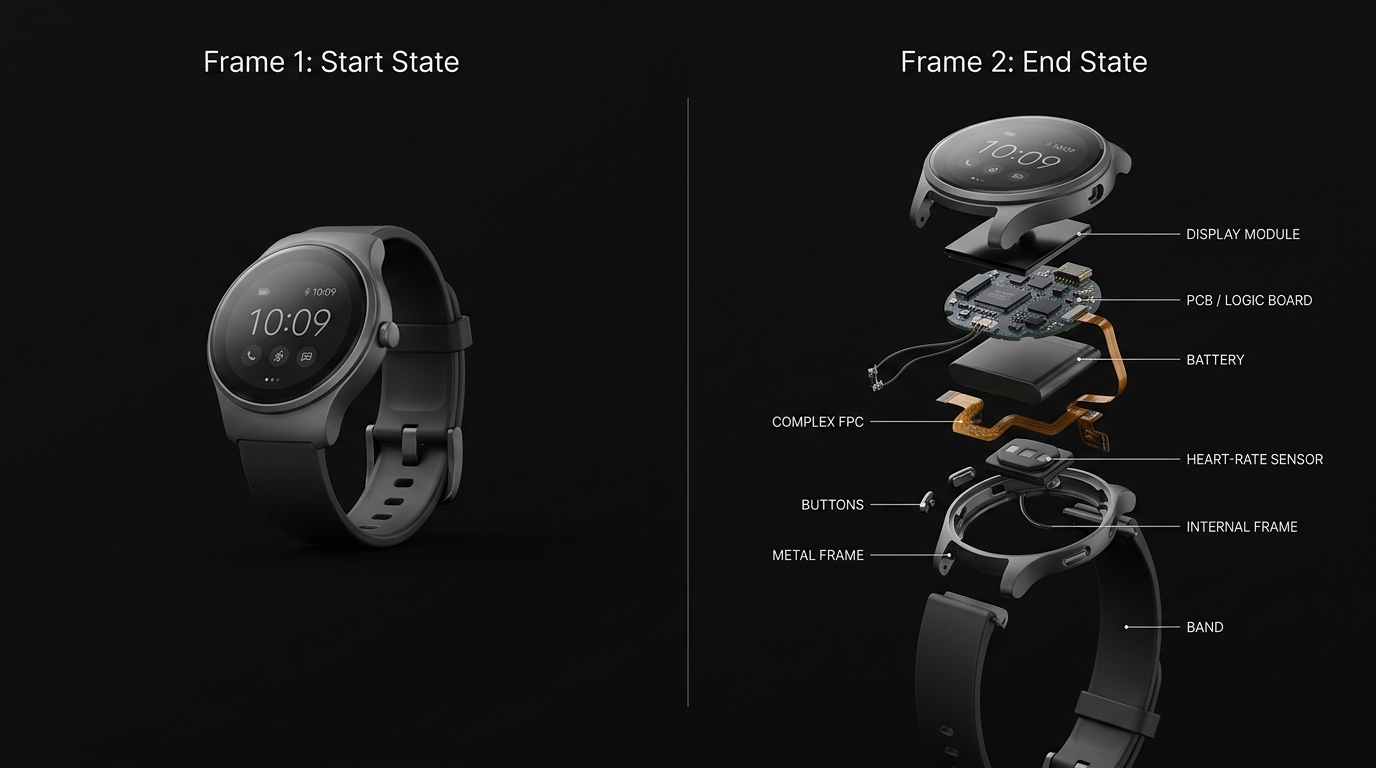
The Rule That Decides Everything: Same background, same lighting, same camera angle, same distance. If these drift between the two frames, the animation will warp and jitter instead of gliding.
Other end states that work: closed to open, day to night, empty room to furnished, blueprint to finished product, packed to unpacked.
Step 2: Animate Between Them (Google Flow)
- Where: In Flow, choose the frames-to-video option.
- Upload: Frame 1 as the start, Frame 2 as the end.
- Length: 2 to 4 seconds. Longer means more frames and a heavier page.
- Download: Export as MP4.
The Animation Prompt
Create a seamless, slow animation transitioning from the
first image to the second.
The camera stays completely still. No zoom, no pan, no
rotation of the viewpoint.
Only the [PRODUCT] itself moves. Components separate
smoothly and evenly, with steady motion throughout.
Keep lighting, background and shadows identical for the
whole clip.
No cuts, no flashes, no added effects, no text.
🚨 Camera Movement Kills This Effect
The whole illusion depends on the viewer feeling they are controlling the object. A moving camera makes it feel like a video playing, not something being turned by hand. If the export drifts or zooms, regenerate with the camera instruction made even more explicit.
Step 3: Break The Video Into Frames (EZGIF)
- Go to ezgif.com/video-to-jpg.
- Upload: Your MP4 from Flow.
- Setting: Use Video to JPG (image sequence). Set frame rate to 30 fps.
- Convert: Click Download frames as ZIP.
- Result: A numbered folder, one image per frame. A 3-second clip at 30fps gives roughly 90 frames.
- Unzip: Keep the file names exactly as they are. The numbering is what preserves the playback order.
Two Things Worth Doing:
- Export as WebP instead of JPG where you can. Roughly 30% smaller with better colour, and every modern browser supports it.
- If the page ever feels slow to load, delete every second frame. At 30fps nobody notices the difference and you halve the file weight.
Step 4: Build The Scroll Effect (Your AI Coding Tool)
Drop the whole frames folder into your project — for Next.js, put it in public/frames. Then paste this prompt into Claude, Antigravity, Cursor, or ChatGPT:
The AI Build Prompt
Build a scroll-linked image sequence animation using the
image frames in [FOLDER PATH].

How it must work:
- Render the frames onto an HTML canvas, not as <img> tags.
- Preload every frame before the animation starts, and show
a simple loading state until they are ready.
- Map the scroll position to the frame index, so scrolling
down steps forward through the frames and scrolling up
steps back. This is the technique Apple uses on their
product pages.
- Use a tall scroll container, around 400vh, with the canvas
sticky and full-screen inside it, so the animation holds
in place while the user scrolls through it.
- Draw with requestAnimationFrame. Never redraw on every
scroll event directly.
- Only repaint when the frame index actually changes.

Also handle:
- Canvas resizing on window resize, keeping aspect ratio.
- Mobile: if the viewport is under 768px, load every second
frame instead of all of them.
- prefers-reduced-motion: show a single static frame.

Keep it in one component. Add short comments explaining the
scroll-to-frame mapping so I can adjust the speed later.
Show me the component, then tell me what to change if the
animation feels too fast or too slow.
Speed Tuning & Troubleshooting
- Too fast? Increase container height. Moving from
400vhto600vhstretches the same frames over more scroll distance. - Too slow? Reduce the container height (e.g.,
250vh) or drop frames. - Stuttering? Frames are probably too large in resolution. Compress them with Squoosh or switch to WebP.
- Blank on load? Preloading has not finished or path is wrong. Check network tab and file paths.
Where To Use This Effect
Product launch pages, SaaS hero sections, interactive portfolio sites, or hardware showcases — anything where one hero object tells the story.
Golden Rule: Use it once per page. Two scroll-linked sequences on the same page degrades performance and makes the effect feel cheap.
Innovorus FAQ
Quick answers about this guide and the Innovorus platform.

Usama Usama
Expert at Innovorus · Sharing knowledge on skills, freelancing & digital growth.